
快速开始
在线尝试
你可以直接在 StackBlitz 上进行在线尝试。由于 StackBlitz 的限制,模型文件无法上传至在线示例。如需体验涉及到模型文件的示例,可参考 快速上手 进行项目的快速搭建。
安装
前置准备
UniCore 可以单独使用,也可以安装到现有项目中。在这两种情况下,都可以使用以下方式安装它:
npm install unicore-sdk以 Vue 框架为例,搭建框架后,在 vue.config.js 需要添加配置以保证功能的正常运行。本文提供两种配置,一种是基础配置,另一种是优化首屏加载速度的配置。
经测试,在 180 KB/s 的低速网速下,经过多次测试,加载基础配置所需的第一次首屏加载时间为 27秒 ,而使用优化首屏加载速度的配置所需时间为 9秒 。提升显著,因此推荐使用后者 Webpack 配置:
注:在第一次首屏加载后,浏览器会自动缓存数据,无论使用哪种配置,二次加载时间将大大缩短。
选择1:基础配置:
const { defineConfig } = require('@vue/cli-service')
const path = require("path")
const NodePolyfillPlugin = require('node-polyfill-webpack-plugin')
const CopyWebpackPlugin = require("copy-webpack-plugin")
const cesiumSource = 'node_modules/cesium/Source';
const cesiumWorkers = '../Build/Cesium/Workers';

module.exports = defineConfig({
  transpileDependencies: true,
  configureWebpack: {
    plugins: [new NodePolyfillPlugin()],
    resolve: {
      fallback: {
        "url": false,
        "http": false,
        "https": false,
        "zlib": false
      }
    },
    plugins: [
      // Copy Cesium Assets, Widgets, and Workers to a static directory
      new CopyWebpackPlugin({
        patterns: [
          { from: path.join(cesiumSource, cesiumWorkers), to: 'Workers' },
          { from: path.join(cesiumSource, 'Assets'), to: 'Assets' },
          { from: path.join(cesiumSource, 'Widgets'), to: 'Widgets' },
          { from: path.join(cesiumSource, 'ThirdParty'), to: 'ThirdParty' }
        ]
      }),
    ],
    module: {
      unknownContextRegExp: /^('|')\.\/.*?\1$/,
      unknownContextCritical: false
    }
  }
})
选择2:优化首屏加载速度的配置:
const { defineConfig } = require('@vue/cli-service')
const NodePolyfillPlugin = require('node-polyfill-webpack-plugin')
const webpack = require('webpack');

const path = require("path")
const CopyWebpackPlugin = require("copy-webpack-plugin")
const cesiumSource = 'node_modules/cesium/Source';
const cesiumWorkers = '../Build/Cesium/Workers';

const CompressionPlugin = require('compression-webpack-plugin');
const TerserPlugin = require('terser-webpack-plugin');


function resolve (dir) {
  return path.join(__dirname, dir)
}

module.exports = defineConfig({
  transpileDependencies: true,
  lintOnSave: false,
  productionSourceMap: false,
  configureWebpack: {
    devtool: 'source-map',
    output: {
      sourcePrefix: ''
    },
    optimization: {

      runtimeChunk: "single",
      splitChunks: {
        maxSize: 1024 * 2560, // chunk 自动分割
        cacheGroups: {
          async: {
            chunks: "async",
            minChunks: 1, // 代码块至少被引用的次数
            maxInitialRequests: 3, // 设置最大的请求数
            minSize: 0, // 设置每个 chunk 最小的大小 (默认30000),这里设置为 0,以方便测试
            automaticNameDelimiter: '~',
            priority: 9
          },
          vendors: {
            chunks: "all", // 使用 all 模式
            test: /[\\/]node_modules[\\/]/, // 匹配 node_modules 下的模块
            name: "vendors", // 包命名,最终的命名要结合 output 的 chunkFilename
            minChunks: 1,
            minSize: 30000,
            priority: 10 // 设置优先级
          }
        }
      },
      usedExports: true,

      minimizer: [
        new TerserPlugin({
          parallel: true,//使用多进程并发运行以提高构建速度 Boolean|Number 默认值: true
          terserOptions: {
            compress: {
              drop_console: true,//移除所有console相关代码;
              drop_debugger: true,//移除自动断点功能;
              pure_funcs: ["console.log", "console.error"],//配置移除指定的指令,如console.log,alert等
            },
            format: {
              comments: false,//删除注释
            },
          },
          extractComments: false,//是否将注释剥离到单独的文件中
        })
      ]
    },

    resolve: {
      alias: {},
      fallback: {
        //其他的如果不启用可以用 keyname :false,例如:crypto:false,
        "crypto": require.resolve("crypto-browserify"),
        "stream": require.resolve("stream-browserify"),
        "https": false, "zlib": false, "http": false, "url": false
      },
      mainFiles: ['index', 'Cesium']
    },
    plugins: [new NodePolyfillPlugin(),
    //   new webpack.ProvidePlugin({
    //   $: "jquery",
    //   jQuery: "jquery",
    //   "window.jQuery": "jquery",
    //   Popper: ["popper.js", "default"]
    // }),
    new CompressionPlugin({
      algorithm: 'gzip', // 使用gzip压缩
      test: /\.js$|\.html$|\.css$/, // 匹配文件名
      filename: '[path][base].gz', // 压缩后的文件名(保持原文件名,后缀加.gz)
      minRatio: 0.8, // 压缩率小于0.8才会压缩
      threshold: 10240, // 对超过10k的数据压缩
      deleteOriginalAssets: false, // 是否删除未压缩的源文件,谨慎设置,如果希望提供非gzip的资源,可不设置或者设置为false(比如删除打包后的gz后还可以加载到原始资源文件)
    }),
    // Copy Cesium Assets, Widgets, and Workers to a static directory
    new CopyWebpackPlugin({
      patterns: [
        { from: path.join(cesiumSource, cesiumWorkers), to: 'Workers' },
        { from: path.join(cesiumSource, 'Assets'), to: 'Assets' },
        { from: path.join(cesiumSource, 'Widgets'), to: 'Widgets' },
        { from: path.join(cesiumSource, 'ThirdParty'), to: 'ThirdParty' }
      ]
    }),
    new webpack.DefinePlugin({
      // Define relative base path in cesium for loading assets
      CESIUM_BASE_URL: JSON.stringify('')
    }),

    ],
    module: {
      unknownContextRegExp: /^('|')\.\/.*?\1$/,
      unknownContextCritical: false
    },
    amd: {
      toUrlUndefined: true
    },
  }
})
使用方法
在Vue入口文件引入通用图形引擎SDK及配置文件、样式文件:
import { UniCore } from 'unicore-sdk'
import { config } from 'unicore-sdk/unicore.config'
import 'unicore-sdk/Widgets/widgets.css'
在初始化方法调用(accessToken可联系开发者获取Token获取方法):
// 初始化unicore
let uniCore = new UniCore(config, accessToken);
uniCore.init("unicoreContainer");
accessToken 可联系开发者获取 Token 获取方法,下面为测试 token :
测试Token:eyJhbGciOiJIUzI1NiIsInR5cCI6IkpXVCJ9.eyJqdGkiOiIxNjEwMzI4My01MjBmLTQzYzktOGZiMS0wMDRhZjE0N2IyMGIiLCJpZCI6MTc1NzkyLCJpYXQiOjE3MTM3NzQ3OTh9.zU-R4MNvHr8rvn1v28PQfDImyutnpPF2lmEgGeSPckQ在前端界面新增一段用于存放通用图形引擎显示区域的 div (通过 css 样式修改可以将通用图形引擎显示区域调整为全屏,这里展示未作修改的样式):
<div id="unicoreContainer"></div>运行命令npm run serve,即可看到通用图形引擎SDK已初始化完毕。
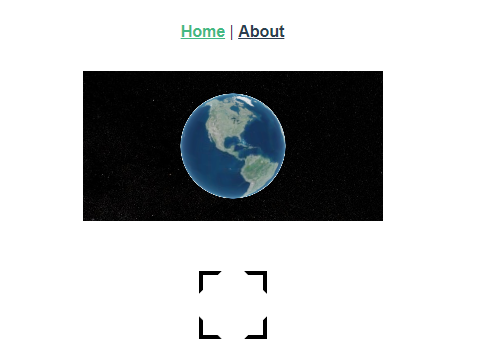
为了让通用图形引擎显示区域更好地展示,建议为 div 设置 css 样式,如下例:
<style scoped>
#unicoreContainer {
  position: absolute;
  top: 0;
  left: 0;
  width: 100%;
  height: 100%;
  overflow: hidden;
  background: black;
}
</style>
温馨提示
鉴于 Vue 的实现原理,不建议将 viewer 放入 Vue 中的 store、data、computed 内,会导致通用图形引擎的展示帧率严重下降。你可以直接使用 uniCore.viewer 或 window.viewer 的方式获取 viewer。
另外的,由于资源文件加载路径问题,在使用 Vue 的路由功能时,不建议使用 history 模式,建议使用 hash 模式。
如果项目使用 history 模式,需要根据项目URL具体展示路径修改 vue.config.js 中的 CESIUM_BASE_URL: JSON.stringify('./').
拓展
在初次进行首屏加载时,可通过添加 首屏加载动画 提升用户体验。
引擎默认开启了抗锯齿效果,如需关闭,可在项目中添加如下代码。
// 关闭抗锯齿
uniCore.viewer.scene.postProcessStages.fxaa.enabled = false
关闭地形功能
你可以在初始化 Unicore 时关闭地形功能,使用平坦的底图。
通过:
uniCore.init("unicoreContainer", false);随即使用以下代码添加自己的底图(你可以将下列代码涉及的底图更换成其他的底图):
viewer.imageryLayers.addImageryProvider(new Cesium.UrlTemplateImageryProvider({
  url: "https://webst02.is.autonavi.com/appmaptile?style=6&x={x}&y={y}&z={z}",
  layer: "tdtVecBasicLayer",
  style: "default",
  format: "image/png",
  tileMatrixSetID: "GoogleMapsCompatible",
  maximumLevel: 18,
  minimumLevel: 1,
  show: true,
}));